Installation
The first step to getting started with Intera is to install it on a device. There are many ways to run it for all kinds of scenarios. A DOCKER environment is required to be pre-installed on your system.
Minimum Hardware Requirements
Minimum hardware requirements for Intera:
- Docker Engine 20.10+ or Docker Desktop
- 2 GB RAM
- 20 GB HDD space
- Terminal access rights
MacOS
To install INTERA on your company server you only need an existing DOCKER environment. No other software or dependencies are required.
DOWNLOAD AND INSTALL DOCKER
Download for Mac (Apple Silicon)
Please follow online instructions by Docker on how to install this software.
Docker Desktop (recommended):
“`bash brew install –cask docker
“` Run Docker Desktop from Applications and wait for it to load completely (menu item icon will stop animations).
Advanced installation option (GUI-less, Colima + Docker CLI)
“`bash brew install colima docker colima start
“` If getting «insufficient access rights» run: `colima status`, if neccesary then run: `colima start`; `docker context use colima`.
Once installed you will be able to access INTERA on the local network using any web browser of your choice at the following address:
Windows Server
To install INTERA on a Windows Server, you need a working Docker environment. No additional INTERA-specific software or dependencies are required.
Download and Install Docker
Download Docker Desktop for your system:
- Windows AMD64
- Windows ARM64
Before installing Docker Desktop on Windows Server, install and configure Windows Subsystem for Linux (WSL) and the Virtual Machine Platform component.
1. Enable WSL and Virtual Machine Platform
Open PowerShell as Administrator and run:
dism.exe /online /enable-feature /featurename:Microsoft-Windows-Subsystem-Linux /all /norestart
Then run:
dism.exe /online /enable-feature /featurename:VirtualMachinePlatform /all /norestart
Restart Windows Server.
2. Install WSL 2
Open PowerShell as Administrator and run:
wsl --install
Then make WSL 2 the default version:
wsl --set-default-version 2
Complete the Linux distribution setup when prompted.
INTERA installation instructions below assume an Ubuntu-based WSL environment.
3. Install Docker Desktop
Download and install Docker Desktop from the official Docker website.
During installation, select:
Use WSL 2 instead of Hyper-V
After installation is complete, restart Windows Server.
4. Configure Docker Desktop
Start Docker Desktop from the Windows Start menu and accept the license agreement if prompted.
Open:
Settings → General
Make sure that:
Use the WSL 2 based engine
is enabled.
Then open:
Settings → Resources → WSL Integration
Enable Docker integration for the Linux distribution in which INTERA will be installed.
Docker is now ready for INTERA installation.
Install INTERA
1. Copy the Installer
Copy the INTERA installation file:
intera.run
to your WSL Linux environment.
For example:
/home/administrator/intera.run
2. Open the WSL Terminal
Start your installed WSL Linux distribution.
You can do this from the Windows Start menu or by running:
wsl
from PowerShell or Windows Terminal.
3. Obtain Administrator Rights
In the Linux terminal, run:
sudo -i
Enter the Linux administrator password if requested.
4. Open the Installer Directory
Navigate to the directory where intera.run was copied.
For example:
cd /home/administrator
5. Make the Installer Executable
Run:
chmod +x intera.run
6. Start the INTERA Installer
Run:
./intera.run
The INTERA installation script will start.
Follow the instructions displayed by the installer.
Where appropriate, you can accept the default values by pressing Enter.
7. Store INTERA administrator login and password.
Once the installation is complete, please note and store in a secure location your local Administrator account’s login and password. You will not be able to restore them if you lose this information.
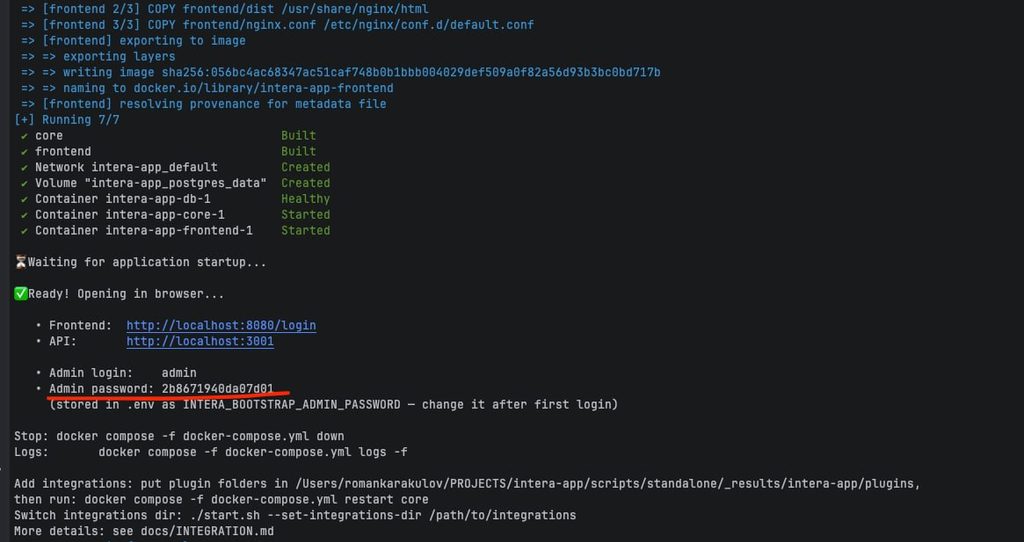
Start INTERA
After the installation is complete, open a web browser on the server and navigate to:
http://localhost:8080
If INTERA has started successfully, the INTERA login or initial setup page will appear.
To access INTERA from other computers on your network, additional network, firewall, and server-address configuration may be required. Do not use localhost from another computer, as localhost always refers to the computer on which the browser is running.
Continue with First Setup Journey to complete the initial INTERA configuration.
LINUX
INTERA runs on Linux using Docker.
The instructions below assume an Ubuntu or Debian-based Linux system.
1. Install Docker
Update the package list:
sudo apt update
Install Docker:
sudo apt install -y docker.io docker-compose-plugin
Start Docker and enable it to run automatically after reboot:
sudo systemctl enable --now docker
Check that Docker is running:
docker --version
and:
docker compose version
2. Copy the INTERA Installer
Copy the installation file:
intera.run
to the Linux server.
For example:
/home/administrator/intera.run
3. Open the Installer Directory
In the terminal, go to the directory containing the installer:
cd /home/administrator
4. Make the Installer Executable
Run:
chmod +x intera.run
5. Start the Installation
Run the installer with administrator privileges:
sudo ./intera.run
Follow the instructions displayed by the installer.
Where appropriate, press Enter to accept the default values.
6. Open INTERA
After the installation is complete, open a browser on the Linux server and navigate to:
http://localhost:8080
To access INTERA from another computer on the same network, use the Linux server’s IP address instead of localhost.
For example:
http://192.168.1.50:8080
If required, allow the INTERA port through the Linux firewall.
For Ubuntu systems using UFW:
sudo ufw allow 8080/tcp
Continue with First Setup Journey after INTERA opens successfully.
TROUBLESHOOTING
It can happen that you run into trouble while installing and onboarding INTERA.
This page is here to help you solve the most common problems.


